> For the complete documentation index, see [llms.txt](https://polycop.gitbook.io/docs/llms.txt). Markdown versions of documentation pages are available by appending `.md` to page URLs; this page is available as [Markdown](https://polycop.gitbook.io/docs/getting-started/wallet-setup.md).

# Wallet Setup

Set up your PolyCop wallet for Polymarket copy trading and manual trading. Learn your deposit address, trading address, private key export, MetaMask import, and direct Polymarket login.

## Understand Your Wallet Addresses

Polymarket's system generates **three distinct addresses** for you. This is a common source of confusion — here's what each one does:

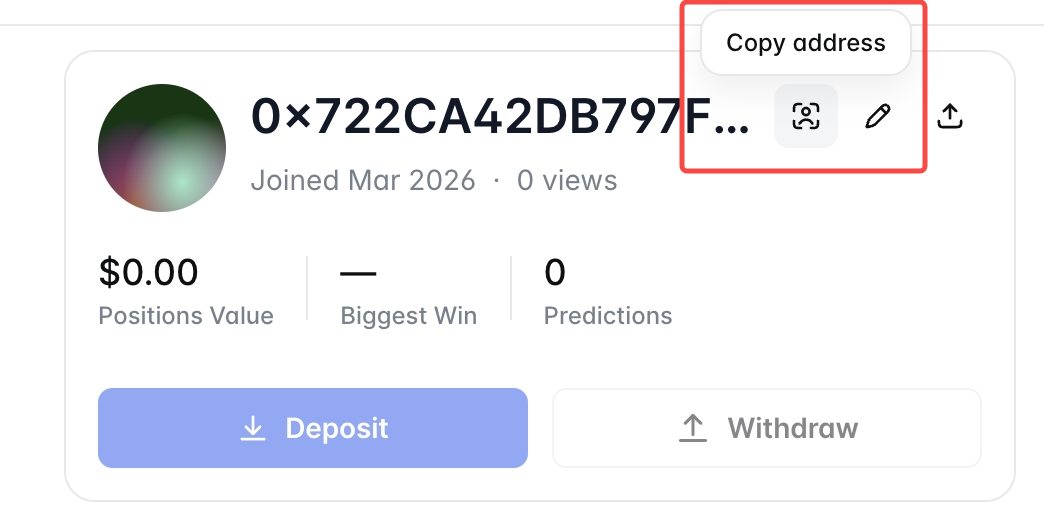
<table data-header-hidden><thead><tr><th></th><th width="374"></th><th></th></tr></thead><tbody><tr><td><strong>Address Type</strong></td><td><strong>What It's For</strong></td><td><strong>Where To Find</strong></td></tr><tr><td><strong>Deposit Address</strong></td><td>Used to receive funds from other blockchains via cross-chain bridge.</td><td><img src="https://932293051-files.gitbook.io/~/files/v0/b/gitbook-x-prod.appspot.com/o/spaces%2F6RH958mIbJRqog5izKje%2Fuploads%2Fgit-blob-5b201a8deed259967538a5795298ed2368e94db3%2FScreenshot%202026-04-07%20at%2016.11.43.png?alt=media" alt="" data-size="original"></td></tr><tr><td><strong>Trading Address</strong> <em>(Polymarket Profile Address)</em></td><td>Used for gasless trade execution on Polymarket.</td><td><img src="https://932293051-files.gitbook.io/~/files/v0/b/gitbook-x-prod.appspot.com/o/spaces%2F6RH958mIbJRqog5izKje%2Fuploads%2Fgit-blob-000d5423c5abea696af0ff5b219a8381f5a7a783%2Fimage.png?alt=media" alt="" data-size="original"></td></tr><tr><td><strong>Bridge Address</strong> <em>(Internal — not visible to user)</em></td><td>Polymarket's internal address that automatically converts USDC → pUSD (Polymarket USD). You never interact with this directly.</td><td>Not visible</td></tr></tbody></table>

{% hint style="danger" %}
This is why the wallet addresses may look different — they they each serve a different role within the Polymarket system.
{% endhint %}

## Which Address Should I Use? (Quick Reference)

| **Scenario**                                                | **Use This Address**                                   |
| ----------------------------------------------------------- | ------------------------------------------------------ |
| Transferring funds in from an exchange or external wallet   | ✅ **Deposit Address**                                  |
| Sending USDC / USDC.E / USDT directly on Polygon (zero fee) | ✅ **Trading Address** (Polygon only, stablecoins only) |

{% hint style="info" %}
If you mistakenly sent **POL tokens** to this address, or sent funds via the wrong network, you can recover them here: <https://recovery.polymarket.com/> *(Make sure to select the correct blockchain network before connecting your wallet.)*
{% endhint %}

## Create or Import a Wallet

Go to **Wallet** from the main menu or type `/wallet`

* **Create Wallet** — PolyCop will automatically generate a new wallet for you.
* **Import Wallet** — If you already have a wallet, you can import it using a private key.

<div align="center"><figure><img src="https://932293051-files.gitbook.io/~/files/v0/b/gitbook-x-prod.appspot.com/o/spaces%2F6RH958mIbJRqog5izKje%2Fuploads%2Fgit-blob-fe03dc141de9e2b4acf7b725954b3e17edf8542c%2Fimage%20(3).png?alt=media" alt="" width="563"><figcaption></figcaption></figure></div>

<figure><img src="https://ecnasykcedui.feishu.cn/space/api/box/stream/download/asynccode/?code=MGE2MTc3NGM2NGU4YjY3YWRlZWRjMGViYWM0ZWFkMDBfZjg4Y2tSMElEYUtRYkNxNExOS2E1b2hkUUREVlZDSVRfVG9rZW46QkpiQ2JQTHhTb21Bc1Z4Y2sxd2NHZlRPbkZQXzE3NzUwNDEwMzI6MTc3NTA0NDYzMl9WNA" alt=""><figcaption></figcaption></figure>

## Export Your Private Key

You can export your private key at any time from the **Wallet** page by clicking **Export Keys**.

{% hint style="danger" %}
**Keep your private key safe.** Anyone with your private key has full control of your wallet.

Never share your private key with anyone — not even customer support, developers, or trusted friends. No legitimate service will ever ask for it.

Write it down and store it securely offline. Your private key = your funds. Lose it, and everything is gone forever.
{% endhint %}

## Login to Polymarket with Your PolyCop Wallet

You can fully view and use your PolyCop wallet on the official Polymarket website. This lets you see your copy trading positions, trade history, and manage funds directly.

{% stepper %}
{% step %}

#### **Step 1: Import Wallet to MetaMask**

*Use this method if you have your Private Key generated by PolyCop*

1. Open **MetaMask** and click the **Circle Icon** (Account) at the top-right.
2. Select **"Add account or hardware wallet"** -> **"Import Account"**.
3. Paste the **Private Key** provided by PolyCop and click **Import**.

<figure><img src="https://932293051-files.gitbook.io/~/files/v0/b/gitbook-x-prod.appspot.com/o/spaces%2F6RH958mIbJRqog5izKje%2Fuploads%2Fgit-blob-df5303602296a1ba740f205f054f5e6095710e38%2Fimage%20(4).png?alt=media" alt="" width="563"><figcaption></figcaption></figure>

{% hint style="info" %}
*Do not confuse this with your Seed Phrase. Select "Private Key" as the type.*
{% endhint %}
{% endstep %}

{% step %}

#### **Step 2: Connect to Polymarket**

Now that your wallet is in MetaMask, you can use it to access Polymarket directly:

1. Go to [Polymarket.com](https://polymarket.com/).
2. Click **Log In / Sign Up**.
3. Select **MetaMask** and choose the account you just imported (e.g., "Account 2").
4. **Done!** You can now see your copy trading positions, trade history, and deposit/withdraw funds directly on the official site.

<figure><img src="https://932293051-files.gitbook.io/~/files/v0/b/gitbook-x-prod.appspot.com/o/spaces%2F6RH958mIbJRqog5izKje%2Fuploads%2Fgit-blob-ba74f9780dea906441edf3952f20f02d54492447%2Fimage%20(5).png?alt=media" alt="" width="563"><figcaption></figcaption></figure>
{% endstep %}
{% endstepper %}

<figure><img src="https://ecnasykcedui.feishu.cn/space/api/box/stream/download/asynccode/?code=NTRhZmM1ODk3NjhkZTYwNDM0MzE2NGI2MGMyYTBjYjNfQUhiaDRhbWdGcXZnaVI0Uk9pTGs2V2RYZEozaDR3VFpfVG9rZW46RFkwU2I4S084b0Y3N1d4cWhFWWN1R2xpblJmXzE3NzUwNDEwNTc6MTc3NTA0NDY1N19WNA" alt=""><figcaption></figcaption></figure>

## **Wallet Password Protection**

An optional security feature for your wallet. Enable it if you want extra protection for sensitive actions.

**Setup:** Go to `/wallet` and tap the **Wallet Password Protection** button at the bottom to set your unique password. Up to 12 characters, letters and numbers only.

**Action-Locked:** Once enabled, this password is required for all sensitive actions, including withdrawing funds and exporting private keys.

{% hint style="warning" %}
Once set, make sure you remember your password. There is no recovery option if it is lost. Store it safely — and never share it with anyone, especially anyone who DMs you first claiming to be a PolyCop admin→ it's a scam.
{% endhint %}

## **Security Reminder** - Read This

> Telegram's open nature makes it easy for anyone to create fake bots, buy ads, or impersonate existing services — no verification required. Telegram also displays third-party ads in our bots without our approval — we have no control over what appears there.

Your security is PolyCop's top priority. Please take a moment to read this to keep your assets safe.

### **Dos and Don'ts**

❌ **DO NOT click the ad at the top of our bot**. These are third-party scam ads placed via Telegram's ad network, not from us. There is **NO "premium version", "V2", or separate upgrade bot**. Anyone asking you to export your key into another bot is a scammer.

❌ **DO NOT search "PolyCop" in Telegram's search bar**. Fake copycat bots are showing up in search results. You could be handing your funds to a scammer.

❌ **DO NOT** **click links, scan QR codes, or "login" / "verify"** through any message you receive.

🚨 **PolyCop Admin will NEVER DM you first** **or ask for your key**. Scammers impersonate our admins to message or even call you directly — especially right after you ask a question in the group. Their usernames may look almost identical to real admins. If someone DMs you first claiming to be PolyCop → it's a scam. Block them immediately.

✅ <mark style="background-color:$primary;">**PIN the official bot to the top of your chat list**</mark> (Long-press on mobile or right-click on desktop). Always access PolyCop directly from your pinned chats or our official link below. Nothing else.

<figure><img src="https://932293051-files.gitbook.io/~/files/v0/b/gitbook-x-prod.appspot.com/o/spaces%2F6RH958mIbJRqog5izKje%2Fuploads%2FlBJn4qSUG8c9CLkP7ZXN%2Ftelegram-cloud-photo-size-1-4933936753681304460-y.jpg?alt=media&amp;token=e1011031-3e0c-48f6-a1b8-6d92c50484d9" alt="" width="375"><figcaption></figcaption></figure>

### Official Links

✅ **Our ONLY Official Bots, pick yours and PIN it:**

* New York: <https://t.me/PolyCop_BOT>
* Paris: <https://t.me/PolyCop_Paris_bot>
* Tokyo: <https://t.me/PolyCop_Tokyo_bot>
* California: <https://t.me/PolyCop_California_bot>
* London: <https://t.me/PolyCop_London_bot>

Your choice of bot location affects the perceived response speed (latency) when interacting with the bot — not the actual trade execution speed. **All bots share the same backend and have identical internal processing speeds.**

Choosing a bot **closer to your physical location** can improve responsiveness for actions like viewing `/positions`, but it has no impact on how quickly trades are sent to the market.

✅ **Our officail links:**

* **Website:** [polycop.ai](https://polycop.ai)
* **Analytics:** [polycop.fun](https://polycop.fun)

### Extra Protection

* **Wallet Password Protection**\
  Go to `/wallet` → tap **Wallet Password Protection** → set a unique password (up to 12 characters, letters and numbers only). Once enabled, this password is required for withdrawing funds and exporting private keys.

{% hint style="warning" %}
Once set, make sure you remember your password. There is no recovery option if it is lost. Store it safely — and never share it with anyone, especially anyone who DMs you first claiming to be a PolyCop admin → it's a scam.
{% endhint %}

* **Block Unwanted Calls & DMs**

> Scammers now create usernames almost identical to our admins and **call you directly**. A live phone call catches you off guard — you don't have time to think, verify, or realize it's a scam. That's exactly what they're counting on.

To prevent scammers from contacting you:

1. **For Calls:** Telegram → **Settings** → **Privacy and Security** → **Calls** → Set **Who can call me** → **My Contacts**
2. **For DMs:** Telegram → **Settings** → **Privacy and Security** → **Messages** → Set **Who can message me** → **My Contacts**

Now only people saved in your contacts can Call or DM you first.

🛡️ Stay vigilant and trade safely.&#x20;

## Multiple Main Wallets

PolyCop now supports multiple main wallets. You can create new wallets or switch between existing ones at any time — all from `/wallet`.

#### Create a New Wallet

Tap **Create New Wallet** in `/wallet` to generate a brand new wallet address. Your existing wallet stays intact — you're simply switching your active wallet to the new one.

#### Switch Between Wallets

All wallets you've ever created or imported are saved. Switch between them freely at any time. Your currently active wallet is marked with ✅.

> ⚠️ Always check the wallet label when viewing positions or balance — make sure you're on the right wallet.

#### What Carries Over When You Switch

All copy trading tasks, AFK strategies, and sub-wallet tasks are fully inherited by your new active wallet — everything carries over seamlessly.

Sub-Wallet Funds: Any **Add Funds** or **Withdraw** actions for sub-wallets always interact with your **currently active main wallet**. Make sure you're on the right wallet before moving funds.
